

Why Choose Office Workstation Systems for Your Business?

Choosing the right workplace infrastructure affects far more than office appearance. Office workstation systems can shape productivity, comfort, collaboration, and daily operating costs. They combine desks, storage, cable management, screens, partitions, and ergonomic accessories into one coordinated environment.

Jim Keane, former Steelcase president and CEO, has said, “The office is not a place. It’s a tool.” This idea remains practical for growing businesses. A well-planned workstation gives each employee a stable surface, adjustable seating, accessible power, and enough visual privacy. Employees should not have to search for outlets or move stacks of paper before starting work. Small frictions become expensive when repeated every morning.

Office workstation systems also support better space planning. Modular components can be rearranged when teams expand, relocate, or adopt hybrid schedules. That flexibility may reduce replacement costs and prevent usable space from becoming crowded. However, no system solves every workplace problem. A polished desk layout cannot repair unclear management or poor communication.

That limitation matters.

Business leaders should examine employee tasks, body sizes, technology needs, noise levels, and cleaning routines before purchasing. They should also test real workstation samples, not rely only on catalog images. A chair may look refined yet feel uncomfortable after six hours. A partition may improve focus but weaken spontaneous conversation.

The strongest choice balances evidence with experience. It measures available space, observes actual work patterns, and leaves room for change. When selected carefully, office workstation systems become practical business equipment rather than decorative furniture.
Why Choose Office Workstation Systems for Your Business?

What Office Workstation Systems Are

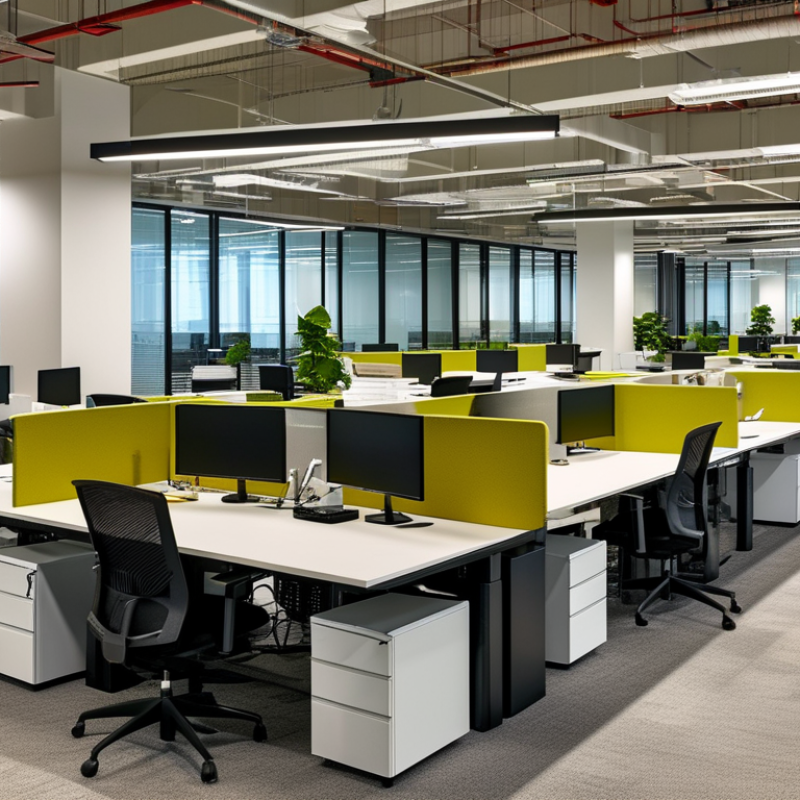
Office workstation systems are coordinated desk arrangements built for teams, not isolated employees. They combine work surfaces, storage, cable management, screens, and shared support features. A typical system may place several desks in a row, cluster, or back-to-back layout. Each station can include a monitor arm, power access, and space for documents. Shared cable trays keep wires away from feet and cleaning equipment. Acoustic panels can reduce distractions without blocking natural light.

The main value is consistent planning. Every employee receives a defined work area, while managers can use floor space more efficiently. Adjustable desks may support different working positions throughout the day. However, a neat layout does not guarantee comfort. I have seen systems that looked efficient but left too little room for chairs and personal movement. Professional planning should consider desk depth, screen distance, lighting, ventilation, and emergency access. Employee feedback matters too. A floor plan can appear perfect on paper and still feel noisy during a busy afternoon.

Tips: Measure the room before choosing a configuration. Leave clear walking paths. Test one workstation first. Check cable access from a seated position. Ask employees where glare, noise, or crowding occurs. Small changes can prevent expensive revisions later.

How Workstations Support Different Business Roles

Office workstation systems support different business roles because their demands are rarely identical. Finance staff need stable performance for spreadsheets, reporting tools, and secure document handling. Designers need stronger graphics processing and accurate displays. Customer service teams often value fast startup, multiple screens, and quiet operation. A single standard machine may look efficient, but it can create daily friction.

Small details matter.

The International Data Corporation reported approximately 259.5 million personal computer shipments worldwide in 2023. This scale reflects continued dependence on dedicated computing devices, even as hybrid work expands. The U.S. Bureau of Labor Statistics also projects strong demand for computer and mathematical occupations through 2033. Workstations therefore remain practical infrastructure, not merely office furniture with cables.

Ergonomics supports performance, too. The International Labour Organization links poor working conditions with reduced worker well-being and productivity risks. Adjustable monitors, suitable keyboards, and clear desk layouts help employees change posture during long tasks. In a shared office, modular workstations can serve analysts in the morning and project teams later. That flexibility is useful, though not perfect. Too much standardization may ignore accessibility needs or specialist software. A thoughtful system should match role requirements, security controls, noise levels, and room size before procurement decisions are made.

Key Performance Benefits for Workplace Productivity

Why Choose Office Workstation Systems for Your Business?

Key Performance Benefits for Workplace Productivity

Office workstation systems are built for demanding daily workloads, not occasional tasks. A well-configured system opens large spreadsheets, design files, and research tools without constant delays. Faster processors support smoother multitasking during meetings, analysis, and document editing. Ample memory reduces slowdowns when several applications remain open. That matters when employees move between a video call, browser tabs, and shared files.

Speed is only one benefit. Solid-state storage can shorten startup and file-access times, helping staff begin work sooner. Reliable cooling supports stable performance during long sessions. Multiple display connections can reduce window switching for analysts, planners, and content teams. Clear layouts often prevent small interruptions from becoming lost minutes. The improvement feels practical.

I have seen teams blame software when the real problem was underpowered hardware. That mistake is common. Matching workstation specifications to each role creates more dependable performance and easier budgeting. Technical teams should review memory use, processing demands, graphics requirements, and upgrade paths before purchasing. Regular maintenance still matters, because even strong equipment can slow down when storage fills or airflow is blocked. No setup is perfect. Employees also need comfortable seating, suitable monitors, and sensible file practices. A powerful workstation cannot fix every productivity issue, but it can remove avoidable friction from the workday.

Security, Management, and Scalability Considerations

Office workstation systems can strengthen security when controls are built into daily work. The 2024 Data Breach Investigations Report found that human involvement appeared in 68% of breaches. Centralized workstations help enforce updates, screen locks, access permissions, and encrypted storage across every desk. Security becomes visible. A finance employee should not install unknown software during a busy afternoon. Yet technology cannot remove poor judgment. Regular training and practical monitoring still matter.

Management is another advantage. Administrators can deploy approved applications, review device health, and revoke access from one console. The 2024 Cost of a Data Breach Report placed the global average breach cost at 4.88 million dollars. That figure makes unmanaged endpoints difficult to justify. However, excessive monitoring can frustrate employees and slow legitimate work. Policies should distinguish risky behavior from harmless mistakes, with clear escalation paths.

Scalability requires planning beyond today’s headcount. The 2024 State of Cloud Report reported that 89% of organizations operate across multiple cloud environments. Workstations should therefore support secure remote access, centralized identity controls, and consistent settings across offices. A growing company may add fifty users in one quarter. Manual setup will likely fail. Standardized images and role-based configurations reduce deployment time, although poorly designed standards can spread errors quickly. Testing a small group before wider rollout remains a practical safeguard.

Why Choose Office Workstation Systems for Your Business? - Security, Management, and Scalability Considerations

Consideration Operational Measure Typical Office Workstation Baseline Business Value Planning Note
Hardware Security Platform security support TPM 2.0 and Secure Boot capable Helps protect encryption keys, verify the boot process, and reduce the risk of unauthorized system modification. Confirm that firmware is current and that security features are enabled through standard configuration policies.
Data Protection Storage encryption Full-disk encryption supported Protects locally stored business data if a workstation is lost, stolen, or removed from the office. Recovery keys should be escrowed in an approved central management or directory service.
Identity Security User authentication MFA and least-privilege compatible Reduces exposure from stolen passwords and limits the damage caused by compromised user accounts. Administrative rights should be restricted to authorized support personnel.
Network Security Secure connectivity 802.1X, VPN, and firewall compatible Supports controlled access to office networks and secure connections for remote or hybrid workers. Network access policies should separate employee, guest, and device-management traffic where appropriate.
Centralized Management Policy and configuration control Central policy deployment supported Allows IT teams to apply security settings, software policies, and configuration changes consistently. Use standardized device profiles to reduce configuration differences between departments.
Patch Management Operating system and application updates Automated update workflows supported Improves vulnerability response by making security updates easier to schedule, monitor, and verify. Test critical updates with a pilot group before broad deployment.
Deployment Standardized provisioning Image or zero-touch provisioning compatible Reduces manual setup effort and helps new employees receive consistent applications and policies. Maintain a documented standard build and remove unnecessary software from the baseline.
Scalability Expansion from small teams to larger offices Repeatable hardware and policy profiles Makes it easier to add users, workstations, and departments without redesigning the entire support process. Define naming, inventory, access, and replacement procedures before rapid expansion begins.
Performance Planning Workload alignment Configurable CPU, memory, storage, and graphics Enables different workstation tiers for office productivity, analytics, design, and other specialized workloads. Use measured application requirements rather than selecting the highest specification for every employee.
Reliability Service continuity Business-class maintenance options available Supports predictable replacement, repair, and spare-device planning for essential roles. Keep an asset register with purchase date, warranty status, assigned user, and replacement priority.
Lifecycle Management Refresh planning Planned replacement cycle Reduces security, compatibility, and performance risks associated with aging hardware. Many organizations plan refreshes around a three-to-five-year business cycle, depending on workload and support policy.
Cost Control Total cost of ownership Centralized support model Can lower support complexity by standardizing devices, accessories, software, and troubleshooting procedures. Evaluate purchase cost together with licensing, support labor, downtime, energy use, and disposal.
Compliance and Audit Asset and activity visibility Inventory and reporting compatible Helps organizations demonstrate control over devices, access rights, encryption status, and update compliance. Retain only the logs and personal data required by applicable internal policies and regulations.
Sustainability Energy and end-of-life management Power-management and recycling support Reduces unnecessary energy consumption and supports responsible equipment replacement and disposal. Enable sleep policies and use certified recycling or secure data-destruction processes for retired devices.
Note: The capabilities listed are common enterprise workstation requirements and should be validated against the organization’s operating system, security policy, application workload, and regulatory obligations.

How to Evaluate and Deploy Office Workstations

Why Choose Office Workstation Systems for Your Business?

How to Evaluate and Deploy Office Workstations

Choosing office workstation systems should begin with real employee tasks, not impressive specifications. A finance worker may need dual displays, while a designer needs stronger graphics performance. Interview users, observe their busiest workflows, and record slow applications. This practical evidence creates a more reliable purchasing plan.

Check processor performance, memory capacity, storage speed, display support, noise levels, and upgrade access. Security also matters. Review firmware controls, account permissions, encryption options, and repair procedures. Measure desk space and cable routes before delivery. A powerful system is still a poor choice if it causes glare, heat, or clutter. I once underestimated shared-desk wiring, and deployment took longer than expected. That mistake changed our site checklist.

Tips: Test three representative workloads during a small pilot. Include login time, application launch time, video meetings, and file transfers. Ask users to report discomfort, not only performance. Keep spare cables and a few replacement systems available. Deploy in waves, label every device, and maintain a current asset record. Provide short training on updates, backups, and reporting faults. Do not assume identical users need identical setups. Some standardization helps support teams, but excessive uniformity can waste money. Review results after two weeks, then adjust the next batch. Metrics may look acceptable while employees still struggle. Listen carefully.